
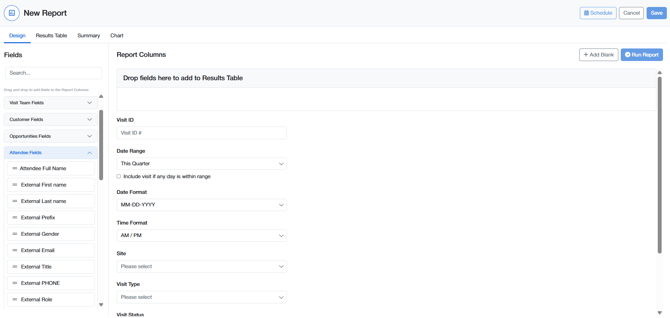
Report Builder also has three new fields that you can use as columns or Custom Filters: Visit Confidentiality, Room (By Visit), and Speaker Status.
Before you start
- Who can use it: Anyone with Report Builder access. Existing Report Builder permissions don't change.
- Action required: None for new reports. Review any saved or scheduled reports that include both Internal and Customer attendee fields, because their results may change (see below).
- Where to find it: Report Builder > Attendee Fields
Heads up: Saved reports that combined Internal and Customer attendee fields now return one row per attendee instead of pairing Internal and Customer attendees on the same row. Row counts, totals, charts, grouping, sorting, and exports for those reports may change. If a downstream process uses these exports, check it after the change.
How do unified attendee reports work?
Each attendee on a visit gets one report row, whether they're Internal or Customer. For example, a visit with 3 Customer attendees and 2 Internal attendees returns 5 rows, instead of pairing every Customer attendee with every Internal attendee.
- Common fields, such as Attendee Full Name, Email, Job Title, Phone, Attendee Role, Company, and Checked In, appear once and work for both attendee types.
- If a field only applies to one attendee type, it's blank for the other type, and the attendee still appears in the report.
- Attendees with the same name or email stay as separate rows if they're separate attendee entries on the visit.
How do I report on only Internal or only Customer attendees?
Add Attendee Type as a Custom Filter and select only the Internal value or only the Customer value.
- Open or create a report in Report Builder.
- Add Attendee Type under Custom Filters.
- Select Internal, Customer, or both.
- Run the report.
You don't need to show Attendee Type as a column to filter by it. To label each row as Internal or Customer, add Attendee Type from Attendee Fields as a column. If you don't use the Attendee Type filter, both attendee types are included.
Attendee Type uses your organization's attendee labels, so it may say External, Client, or another term instead of Customer.
How do the Gender, Attendee Flag, and Attendee Role filters work now?
The Gender, Attendee Flag, and Attendee Role filters apply to both Internal and Customer attendees, unless you also add an Attendee Type filter.
- Attendee Gender = Female returns female attendees of both types.
- Attendee Flagged = Yes returns flagged attendees of both types.
- Attendee Role options show the attendee type with the role, for example Internal | Executive or Customer | Executive.
Exception: Filters now apply only to the attendee on each row. A report that used an Internal attendee filter to narrow down rows showing Customer attendees no longer works that way, and combining a Customer Attendee Type filter with an Internal-only role may return no rows. Review reports that relied on this.
What happens to my existing saved reports?
Existing saved and scheduled reports keep working, and you don't need to recreate them.
- Reports with only Internal attendee fields get an Attendee Type = Internal filter automatically, so they still show only Internal attendees.
- Reports with only Customer attendee fields get an Attendee Type = Customer filter automatically, so they still show only Customer attendees.
- Reports with both switch to one row per attendee and don't get an Attendee Type filter. Add an Attendee Type column if you need to tell attendee types apart.
- Selected fields, column order, renamed column headings, filters, sorting, grouping, formulas, and aggregations are kept wherever they can be safely carried over.
- If part of a report can't be safely converted, Report Builder shows its usual warning instead of silently removing it. Review and fix that report before relying on it.
When you add new attendee fields to an existing report, select them from Attendee Fields.
How do I report on Visit Confidentiality?
Add Visit Confidentiality from the Visit category as a column or Custom Filter. Visit Confidentiality shows Yes when the visit's Confidential checkbox is selected, and No when it isn't. The field uses your organization's label for Confidential.
How do I report on the rooms used by a visit?
Add Room (By Visit) from the Visit category. Room (By Visit) lists all of a visit's rooms in one cell, for example "Room A, Room B", without adding extra rows.
As a Custom Filter, Room (By Visit) lets you select several rooms and returns visits in any of the selected rooms.
How do I report on Speaker Status?
Add Speaker Status from the Agenda reporting area as a column or Custom Filter. Speaker Status shows whether each speaker is currently Active or Inactive. When filtering, a visit is included if at least one of its speakers matches.
What should I know about unified attendee reporting?
- The new fields work in exports (Excel, PDF, and CSV where supported), shared reports, scheduled reports, Summary, Group By, and charts.
- Unified attendee reporting doesn't give anyone access to attendees, fields, or visits they couldn't see before.
- Unified attendee field labels can be renamed through your existing label and translation settings in Global Settings, without changing Customer Attendee labels elsewhere in Nexus.
- Other parts of a report that create several rows per visit, such as agenda sessions, can still add rows. Unified attendee reporting only stops Internal and Customer attendees from being paired.
Frequently asked questions
Where did the Customer and Internal attendee categories go?
New reports use one Attendee Fields category for both attendee types. Use the Attendee Type filter to limit a report to one type.
Why does my report have more rows than before?
Reports with attendee fields now return one row per attendee. If your report used to show Internal and Customer attendees side by side, it now lists each attendee on their own row.
Why is an attendee field blank?
The attendee may not have a value for that field, the field may only apply to the other attendee type, or you may not have access to the field. The attendee still appears in the report.
Do I need to recreate my scheduled reports?
No. Scheduled reports keep using their saved configuration. Review scheduled reports that mix Internal and Customer attendee fields, because their row counts may change.
Why do I see two Speaker Status fields?
Report Builder already had a speaker status field before unified attendee reporting was added. The new Speaker Status field shows whether each speaker is currently Active or Inactive.
Need help? See How do I contact Nexus Support?.