
Monthly Calendar access is set up separately for each role. For example, you can turn it on for Account Managers but not Speakers, or give each role different sites and visibility settings.
Before you start
- Who can use it: Account Managers / Requesters and Speakers, once an Admin turns it on. Admins configure it.
- Action required: Monthly Calendar access is off by default. An Admin must turn it on for each role and select at least one site.
- Where to find it: Settings > Global Settings > Account Manager and Settings > Global Settings > Speaker
How do I give Account Managers / Requesters access to the Monthly Calendar?
Turn on Allow access to Monthly Calendar screen in the Account Manager global settings, select at least one site, and choose what Account Managers can see.
- Go to Settings > Global Settings > Account Manager.
- Turn on Allow access to Monthly Calendar screen.
- Select one or more sites.
- Choose the visibility settings: View Visit Summary, View Site/Room Blocks, and View Notes.
- Save.
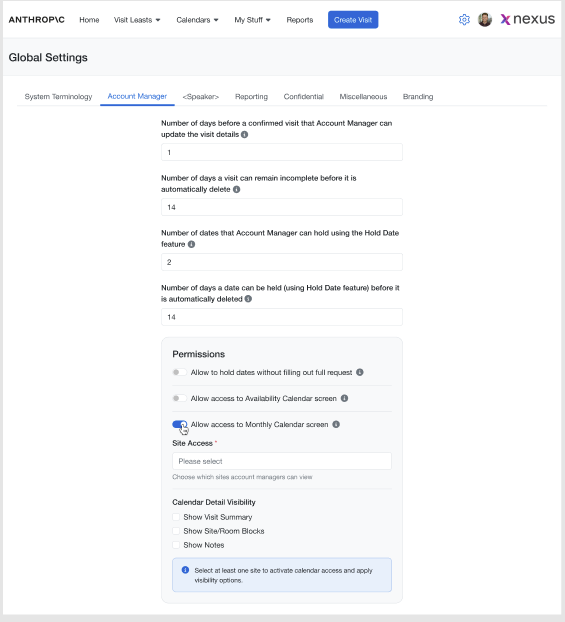
Exception: If no site is selected, Monthly Calendar access turns off automatically for that role.
How do I give Speakers access to the Monthly Calendar?
Turn on Allow Monthly Calendar view in the Speaker global settings, select at least one site, and choose what Speakers can see.
- Go to Settings > Global Settings > Speaker.
- Turn on Allow Monthly Calendar view.
- Select one or more sites.
- Choose the visibility settings: View Visit Summary, View Site/Room Blocks, and View Notes.
- Save.
Speaker Monthly Calendar settings are separate from the Account Manager settings.
What do the Monthly Calendar visibility settings control?
Each role has three Monthly Calendar visibility settings:
- View Visit Summary: whether users can open the read-only Visit Summary from the Monthly Calendar.
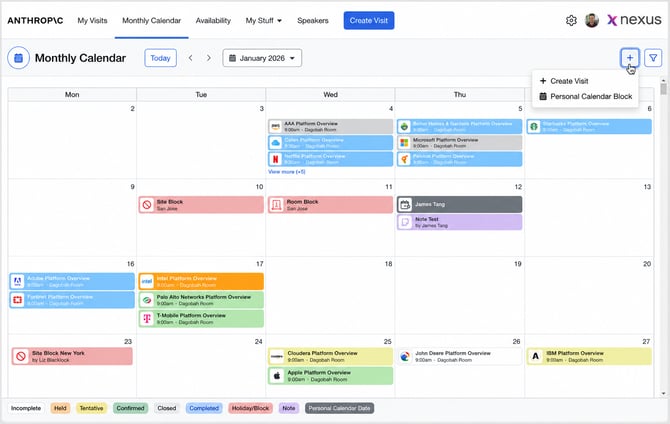
- View Site/Room Blocks: whether Site Blocks and Room Blocks appear on the Monthly Calendar. When this is off, the Show Holidays/Blocks filter is hidden too.
- View Notes: whether Notes appear on the Monthly Calendar. When this is off, the Show Notes filter is hidden too.
How do I let an Account Manager create calendar blocks for other people?
Set Manage calendar blocks on behalf of other persons on the Account Manager's user profile to All or Limited.
- Go to Settings > User & Speakers > Users and edit the Account Manager's profile.
- Under Manage calendar blocks on behalf of other persons, choose:
- None (default): the Account Manager can only manage their own Personal Calendar Blocks.
- All: the Account Manager can manage Personal Calendar Blocks for all applicable people.
- Limited: the Account Manager can manage Personal Calendar Blocks only for the people you select in Persons. You must select at least one person.
- Save.
The Account Manager can then create a block by clicking + > Personal Calendar Block and choosing the person. The Person list only includes people the Account Manager is allowed to manage.
What can Account Managers do with visits on the Monthly Calendar?
Account Managers can see all visits at their allowed sites, but they can only open and act on visits they're associated with, meaning visits where they're the Meeting Owner / Requester.
- For associated visits, the Monthly Calendar shows quick actions based on visit status: Notes for Incomplete and Held visits; Agenda, Attendees, and Notes for Tentative and Confirmed visits; and Survey Completed and Average Rating for Completed and Closed visits.
- Visits the Account Manager isn't associated with stay visible, but don't show quick actions and can't be edited.
- If View Notes is off, Notes don't appear in quick actions either.
What should I know about Monthly Calendar access?
- Monthly Calendar access only shows calendar items for the sites configured for that role. Items from other sites are hidden.
- Seeing a visit or Personal Calendar Block on the Monthly Calendar doesn't give edit access. Existing visit permissions still apply.
- When Availability Calendar access is also on, users can choose between Availability and Monthly in calendar navigation.
- If an Admin removes a site from a role, users lose access to that site's calendar data, even if they saved it as a default filter.
Frequently asked questions
Is the Monthly Calendar automatically available to Account Managers and Speakers?
No. Monthly Calendar access is off by default. An Admin must turn it on for each role separately.
Why doesn't the Monthly Calendar appear for a user?
Check that Monthly Calendar access is on for the user's role, that at least one active site is selected for that role, and that the user is active.
Why can an Account Manager see a visit but not edit it?
This is expected. Seeing a visit on the Monthly Calendar is separate from permission to edit it. Account Managers can only edit visits they're associated with, under the existing visit permissions.
Why are Site and Room Blocks missing from the Monthly Calendar?
View Site/Room Blocks is off for that role. Turn it on in the role's global settings to show blocks.
Can I share a Monthly Calendar link with someone?
Yes. The person must still sign in, and their role must have Monthly Calendar access. If they open the link while signed out, Nexus takes them through login or SSO and then back to the Monthly Calendar.
Why isn't a person showing up when an Account Manager creates a block for someone else?
If the Account Manager has Limited access, that person must be added to the Account Manager's Persons list in their user profile. The person must also be active.
Need help? See How do I contact Nexus Support?.