
-
- What's New
- Functional Summary
- Key Capabilities
- Backward Visit Status Transitions – Overview
- Configuration & Administration
- Supported Status Transitions
- User Roles / Permissions / Prerequisites
- How It Works / User Flow – Step-by-Step
- Data Handling & System Behavior
- Important Considerations & Limitations
- FAQs
- Support & Troubleshooting
Overview
This release introduces controlled backward visit status transitions, allowing authorized users to move visits from Completed back to Confirmed, Tentative, or Cancelled, and from Confirmed back to Tentative.
The enhancement provides greater operational flexibility when visit statuses need correction after a visit has progressed through the workflow, while ensuring associated records, invitations, surveys, notes, and system functionality are handled appropriately.
The system maintains data integrity, preserves historical information, controls communication behavior, and updates feature availability based on the resulting visit status.
What's New
- Site-level control allowing administrators to enable or disable backward transitions for Briefing Managers
- Ability to change a Completed visit back to Confirmed
- Ability to change a Completed visit back to Tentative
- Ability to change a Completed visit to Cancelled
- Ability to change a Confirmed visit back to Tentative
- Automatic handling of invitation records during backward transitions
- InvitationManager availability automatically updates based on visit status
- Warning messages displayed when invitation cancellation emails will be sent
- Preservation of surveys, notes, and historical visit information during status reversals
- Visit Change Log enhancements for tracking backward status transitions
Functional Summary
Authorized users can now reverse specific visit status changes when operational corrections are required.
When a visit is moved backward, the system automatically restores or removes functionality associated with the destination status. This includes invitation management, invitation records, survey access, post-visit information, and communication behavior.
Historical visit information remains preserved, while the user interface dynamically reflects the features available for the newly selected status.
Key Capabilities
- Backward status transitions for supported visit statuses
- Automatic invitation management based on destination status
- Controlled email behavior to prevent unnecessary communications
- Restoration of Confirmed-state functionality when returning to Confirmed
- Preservation of historical survey and note data
- Read-only protection for post-visit information when applicable
- Audit logging of all backward transitions
- Administrative control through site-level configuration
Backward Visit Status Transitions – Overview
|
Transition |
What this means for users |
|
Completed → Confirmed |
Restores Confirmed-state workflows and invitation management functionality |
|
Completed → Tentative |
Removes invitation functionality and allows the approval process to restart |
|
Completed → Cancelled |
Cancels the visit while preserving historical information and preventing cancellation emails |
|
Confirmed → Tentative |
Cancels active invitations and returns the visit to the pre-approval stage |
|
Audit Logging |
All backward transitions are recorded for tracking and compliance purposes |
Configuration & Administration
Site-Level Configuration
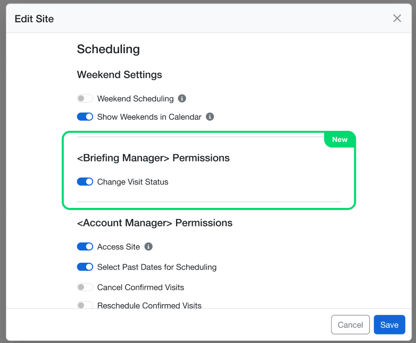
Administrators can control whether Briefing Managers are allowed to perform backward visit status transitions.
Navigation:
- Administration > Site Settings
- Briefing Manager Permissions
Administrators can:
- Enable backward visit status transitions
- Disable backward visit status transitions
- Control access for Briefing Managers at the site level
Changes take effect immediately after saving configuration updates.
Supported Status Transitions
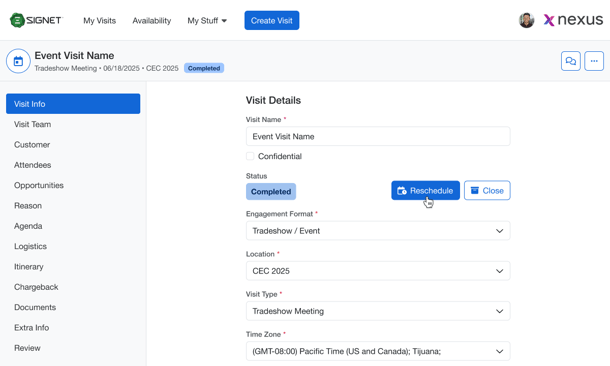
The following backward transitions are supported:
|
Current Status |
Allowed Destination Status |
|
Completed |
Confirmed |
|
Completed |
Tentative |
|
Completed |
Cancelled |
|
Confirmed |
Tentative |
Transitions involving Held, Incomplete, Declined, and Closed remain unchanged.
User Roles / Permissions / Prerequisites
Backward visit status transitions are available only to users with appropriate permissions.
|
Access Level |
What Users Can Do |
|
Briefing Manager |
Perform supported backward transitions when enabled by site configuration |
|
Admin |
Configure and perform backward transitions |
|
Standard User |
No access to backward status transition functionality |
Prerequisites
- Site-level backward transition setting must be enabled.
- User must have permission to modify visit status.
- Existing visit record must be in a supported status.
- Associated visit data must remain available for transition processing.
How It Works / User Flow – Step-by-Step
1. Revert Completed Visit to Confirmed
- Open a visit with status Completed.
- Select the option to revert the visit.
- Choose Confirmed.
- Save the status change.
After the transition:
- Visit status becomes Confirmed
- Invitation Manager becomes available
- Invitation functionality is restored
- Existing surveys and notes remain preserved
- Post Briefing Notes and Voice of Customer Restored
2. Revert Completed Visit to Tentative
- Open a visit with status Completed.
- Select the option to revert the visit.
- Choose Tentative.
- Confirm the action.
After the transition:
- Visit status becomes Tentative
- Invitation Manager is hidden
- Active invitations are cancelled
- No invitation-related emails are sent
- Surveys and historical records remain preserved
3. Revert Confirmed Visit to Tentative
- Open a visit with status Confirmed.
- Select the option to revert the visit.
- Choose Tentative.
- Review the warning message.
- Confirm the transition.
The system displays a warning informing the user that invitation cancellation emails will be sent to participants.
After confirmation:
- Active invitations are cancelled
- Cancellation emails are sent
- Invitation Manager becomes unavailable
- Visit status changes to Tentative
4. Change Completed Visit to Cancelled
- Open a visit with status Completed.
- Select Cancel Visit.
- Confirm the action.
After the transition:
- Visit status becomes Cancelled
- Invitation records remain stored but become inactive
- Invitations are cancelled
- No invitation cancellation emails are sent
- Surveys and notes remain available as read-only records
- Historical information is preserved
5. Review Visit Change History
All backward status transitions are recorded automatically.
Logged information includes:
- User who performed the action
- Date and time of the change
- Previous status
- New status
- Optional comments provided during the transition
Data Handling & System Behavior
Invitation Management
|
Transition |
Invitation Behavior |
|
Completed → Confirmed |
Invitation functionality restored |
|
Completed → Tentative |
Invitations removed |
|
Confirmed → Tentative |
Invitations cancelled and cancellation emails sent |
|
Completed → Cancelled |
Invitations removed |
Surveys & Notes
|
Data Type |
Behavior |
|
Surveys |
Preserved during all supported transitions |
|
Post-Briefing Notes |
Preserved during all supported transitions |
|
VOC Notes |
Preserved during all supported transitions |
|
Historical Visit Data |
Never deleted as part of a backward transition |
Important Considerations & Limitations
- Backward transitions are available only for supported status combinations.
- Site-level configuration controls whether Briefing Managers can perform transitions.
- Surveys and post-visit information remain preserved throughout all supported transitions.
- Invitation Manager visibility is determined by the destination status.
- Completed → Cancelled does not generate cancellation emails because the visit date has already passed.
- Confirmed → Tentative generates cancellation emails when active invitations exist.
- Historical data is retained even when invitations are removed or deactivated.
- All backward transitions are logged in the Visit Change Log.
- Existing forward status workflows remain unchanged.
FAQs
Can a Completed visit be moved back to Confirmed?
Yes. Authorized users can revert a Completed visit to Confirmed and restore Confirmed-state functionality.
Will surveys be deleted when moving a visit backward?
No. Surveys and historical data are preserved.
When are cancellation emails sent?
Cancellation emails are sent when moving a Confirmed visit back to Tentative and active invitations exist.
Will cancellation emails be sent when changing Completed to Cancelled?
No. The system intentionally suppresses cancellation emails for past visits.
Who can perform backward status transitions?
Users with appropriate permissions and access to the enabled site-level feature.
Are all visit statuses eligible for backward transitions?
No. Only the supported transitions described in this release are available.
Support & Troubleshooting
If backward status transitions are unavailable or not behaving as expected, verify the following:
- Site-level backward transition setting is enabled
- User has sufficient permissions
- Visit is currently in a supported status
- Invitation records are active where applicable
- Transition destination is supported
- Recent configuration changes have been saved
When contacting support, provide:
- Visit ID
- Current visit status
- Desired destination status
- User role
- Screenshot of any warning or error message
- Timestamp of the attempted transition
- Relevant Visit Change Log details