
External Visit Types
Admins can now create and manage Visit Types classified as either Internal or External, enabling differentiated behavior between internal briefing requests and external inbound meetings. This includes changes to form elements, visibility of options, and toggles based on classification.
Visit Type Classification
Admins and BE Admins can now classify Visit Types as either Internal or External during creation. This classification is mandatory and must be selected to complete the Visit Type form. Once the Visit Type is saved, its classification becomes permanent and cannot be changed later. Only one classification can be selected per Visit Type.
UI Behavior Based on Classification
Topic Requirement Toggle
When creating or editing a Visit Type:
-
If Internal is selected, the form includes a toggle labeled "At least 1 Topic must be entered by the requester to proceed."
-
If External is selected, this toggle is hidden, since topic selection is not supported in external request forms.
-
This element dynamically appears or disappears in real-time based on the selected type.
Restricted and Facilitator Tabs
Visit Types marked as External have additional restrictions in the UI:
-
On the Restricted and Facilitator tabs, checkbox options are disabled.
-
Instead of a selectable checkbox, a dash (
–) is shown for External Visit Types, preventing invalid configuration.
Filtering and Visibility
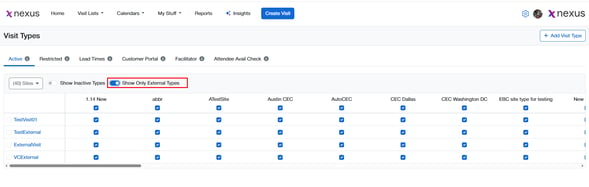
A toggle labeled "Show only External types" has been added to the Visit Types list page:
-
It appears to the right of the existing "Show Inactive Types" toggle.
-
When enabled, only Visit Types classified as External are displayed.
-
This toggle is available across all tabs of the Visit Types section.
-
If no External Visit Types exist, the toggle is hidden. However, it remains visible if External types exist but are inactive.
External Request Form Configuration
This feature introduces expanded support for configuring form fields and behavior specific to External Visit Types within the Request Form Setup admin section. The goal is to enable separate management of internal and external-facing request form content while maintaining consistency across the configuration experience.
Tabbed Interface for External Visit Types
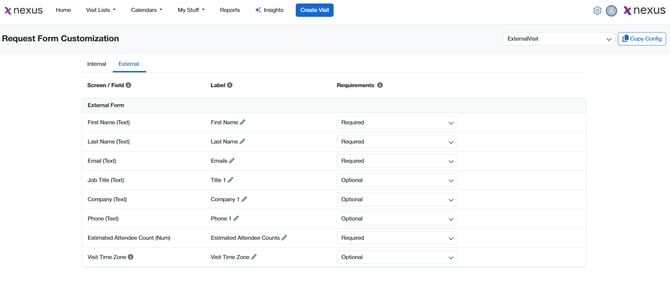
When configuring the Request Form Setup for a Visit Type classified as External, the interface now displays two tabs:
-
Internal Tab: Displays the same configuration options as for Internal Visit Types, including form fields, labels, and requirement controls.
-
External Tab: Allows Admins to configure fields specific to the external request form shown to non-internal requesters.
Tab Behavior
-
Tabs are only visible when an External Visit Type is selected.
-
The Internal Tab is selected by default.
-
The External Tab displays:
-
Headers: Screen/Field, Label, and Requirements, each with corresponding info icons.
-
No form fields initially displayed until External Form Section is configured.
-
External Form Section and Field Configuration
Admins can define which fields appear on the External Request Form, and control field labels and requirements.
|
Field |
Default Label |
Requirement Options |
|---|---|---|
|
First Name (Text) |
First Name |
Required |
|
Last Name (Text) |
Last Name |
Required |
|
Email (Text) |
|
Required |
|
Job Title (Text) |
Job Title |
Required / Optional (Default) / Not Used |
|
Company (Text) |
Company |
Required / Optional (Default) / Not Used |
|
Phone (Text) |
Phone |
Required / Optional (Default) / Not Used |
|
Estimated Attendee Count |
Estimated Attendee Count |
Required |
|
Visit Time Zone |
Visit Time Zone |
Required / Optional (Default) / Not Used |
-
All fields mirror behavior found in Internal tab.
-
Admins can rename field labels.
Copy Configuration Support for External Forms
The existing Copy Configuration functionality has been updated to recognize and handle External Visit Type configurations.
Supported Scenarios:
-
External ➝ External: Internal and External form settings are copied.
-
External ➝ Internal: Only Internal form settings are copied; External settings are ignored.
-
Internal ➝ External: Only Internal form settings are copied; External settings remain unchanged.
-
Internal ➝ Internal: All Internal configurations are copied as usual.
Notes
-
Tabbed configuration UI appears only when editing External Visit Types.
-
Field configuration logic, validation, and copy behavior remain consistent with internal fields, ensuring predictable admin workflows.
-
External configurations do not interfere with internal-only workflows.
"Show on External Form" Checkbox for Form Sections
This feature introduces a checkbox control labeled "Show on External Form" for managing the visibility of specific form elements across Internal and External views in External Visit Types. It allows Admins to determine which Reason For Visit, Extra Info, and Logistics questions or section headers should be visible on the external request form.
Section Visibility Control for External Visit Types
When configuring an External Visit Type in the following admin sections:
-
Reason For Visit Questions
-
Extra Info Questions
-
Logistics Questions
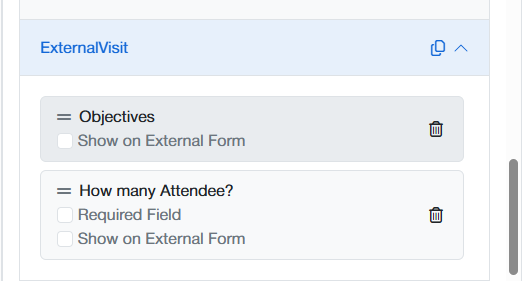
Each individual question and section header now includes a "Show on External Form" checkbox.
Behavior:
-
Checkbox is visible only when editing a Visit Type classified as External.
-
When checked, the associated item appears on both the Internal and External versions of the request form.
-
When unchecked, the item appears only on the Internal form.
Copy Configuration Behavior
Checkbox state is preserved or reset based on the copy direction:
-
Between two non-reference External Visit Types: Checkbox state is copied as-is.
-
From non-reference to reference site Visit Type: Checkbox is automatically unchecked on the backend.
-
For Reference site Visit Types: Checkbox is not displayed at all.
Site Branding and Image Upload Enhancements
This feature group introduces enhancements to the Site Details and Global Settings interfaces that allow Admins to:
-
Upload a Site Image for use across the platform
-
Add an External Form Description specific to each site
-
Update and unify branding under a centralized Branding section
Site Image Upload in Site Details
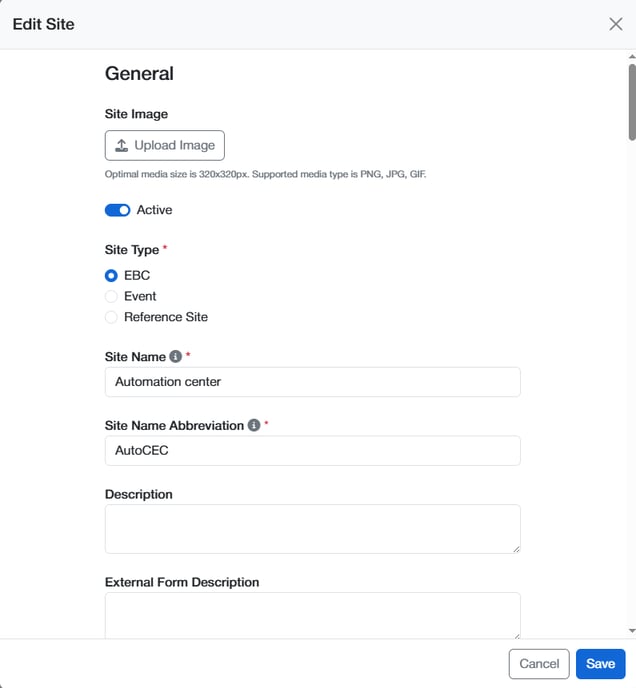
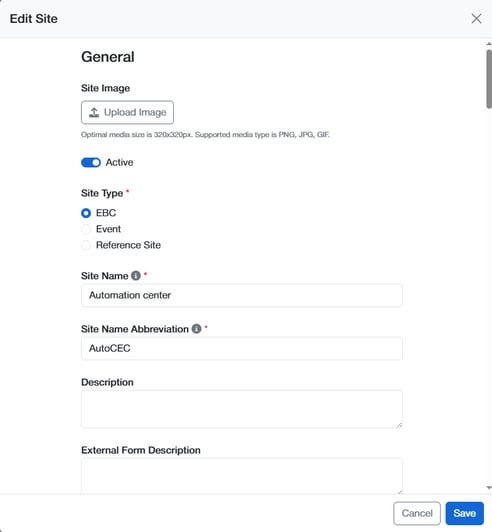
Admins can now upload a square image (e.g., logo or site branding) within the Site Details form.
Behavior
-
A new "Upload Image" button appears under the "General" label.
-
When clicked, the standard browser file picker opens.
-
Once an image is selected, it is displayed in place of the Upload button.
-
A Delete button is shown to allow removal.
Interactions
-
Clicking Cancel preserves the previously uploaded image.
-
Clicking Save after deleting the image removes it permanently.
-
Upload restrictions:
-
Accepted formats: PNG, JPG, GIF
-
Recommended dimensions: 320x320px
-
-
Helper text: "Optimal media size is 320x320px. Supported media type is PNG, JPG, GIF."
-
The existing image upload component used for Global Settings → External Agenda Views is reused here.
External Form Description Field
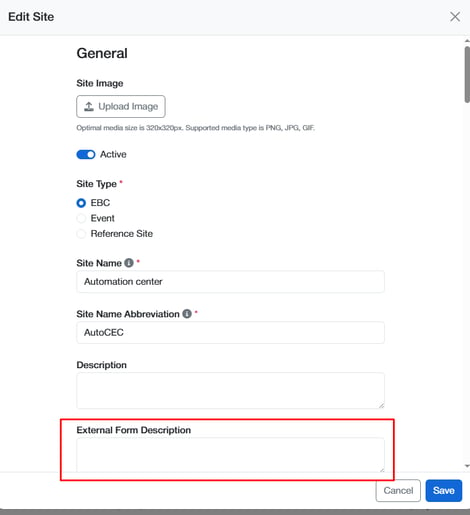
A new optional long text field labeled "External Form Description" has been added to Site Details.
Behavior
-
Appears directly below the existing "Description" field.
-
Used to display text on the External Request Form for the specific site.
-
If empty, no description block is shown externally.
Validation Rules
-
Max Length: 4000 characters
-
Leading spaces are disallowed — error message: "Description cannot start with empty space"
-
Trailing spaces are automatically trimmed on save
-
Field is hidden entirely if no External Visit Types exist on the platform
Persistence
-
Behaves like other standard Site Details fields with respect to Save and Cancel
Global Settings → Agenda Preview Renamed to Branding
The Agenda Preview section under Global Settings has been renamed to Branding and updated for clarity.

Updates
-
Section title is now Branding
-
Label updated from "External Agenda Views Header Image" → "External Header Image"
-
Helper text added beneath the image upload button:
-
"Optimal media size is 720x180px. Supported media type is PNG, JPG, GIF."
-
-
Info icon tooltip next to the label reads:
-
"This image will be displayed as header image for Agenda preview and External Request Form."
-