
- Overview
- What’s New
- Functional Summary
- Key Capabilities
- Customer Portal Layout C Enhancements – Overview
- Configuration & Administration
- Who configures Layout C
- Where Layout C is configured
- How to enable Layout C
- Layout C settings available in the Settings tab
- 1. Naming Display
- 2. Home Engagement Details Display
- 3. Home Host Details Display
- 4. Email Feature
- 5. Other
- Styles
- 1. Header Styles
- 2. Main Navigation Styles
- 3. Home Page Hero Content (Layout C Only)
- 4. Pod Styles
- 5. General Styles
- How It Works
- Important Considerations & Limitations
- Quick Links updates
- User Roles / Permissions / Prerequisites
- User roles
- Prerequisites
- How It Works / User Flow – Step-by-Step
- 1. Enable and configure Layout C
- 2. Configure tab visibility and order
- 3. Configure navigation styling
- 4. Configure Quick Links for Layout C
- 5. Configure custom tab to Application tab type Quick link
- 6. End-user experience in Layout C
- 7. Responsive behavior
- Important Considerations & Limitations
- FAQs
- What changes when I select Layout C?
- Do I need to reconfigure all tabs for Layout C?
- What happens if I switch away from Layout C after entering values?
- Why can’t I save my Layout C settings?
- Why don’t I see a contact option for Meeting Owner or Briefing Manager?
- What happens if all tabs are disabled?
- What changed in Quick Links for Layout C?
- Does Quick Links in this release change portal rendering?
- Do style changes apply immediately?
- Does Layout C work on mobile devices?
- Support & Troubleshooting
Overview
This release introduces Layout C for the Customer Portal and adds the supporting configuration needed to manage its content, navigation, styling, and quick-link setup.
Layout C gives organizations a more modern portal experience with a horizontal tab layout, updated home-page presentation, enhanced navigation styling, and expanded configuration options. Administrators and Briefing Managers can configure these settings from the existing Customer Portal administration areas, while portal users see the results automatically when Layout C is enabled for their center.
What’s New
-
New Layout C option in the Customer Portal Layout selector
-
New horizontal tab navigation for the Customer Portal
-
Layout C-specific settings for:
-
Naming display
-
Home engagement details
-
Home host details
-
Email/contact features
-
Other display options
-
-
Configurable Main Navigation Styles for Layout C
-
Updated behavior when all tabs are disabled
-
Support for tablet and mobile responsive views
-
Layout C default settings available for consistent setup across centers
-
Meeting Owner details displayed in the Your Hosts section when enabled
-
Updated Quick Links configuration experience, including:
-
Ability to associate a custom tab to quick links on configurations and experiences
-
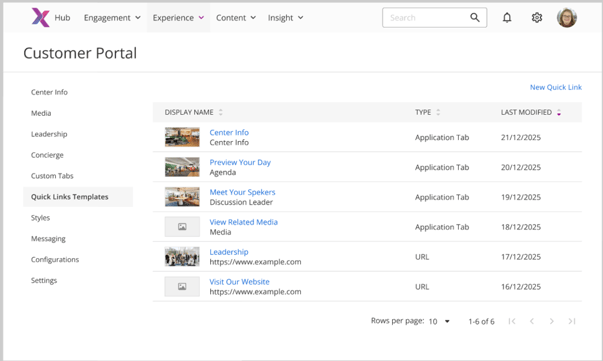
Quick Link Templates section to list all available quick links that can be used across all layouts
-
Selected layout shown under the Center dropdown
-
Add Quick Link action replacing the legacy New Quick Link action
-
Layout C quick link fields for Title Text, Description Text, and Link Image
-
Add Group and Add Quick Link actions for Layout C
-
Removal of the Show in Briefing Instance checkbox group from the Quick Link Details form
-
Clearer guidance that Link Icon applies only to Layout B
-
Functional Summary
When Layout C is selected for a center, the Customer Portal displays a new page structure with horizontal tabs across the top of the content area. The visible tabs and their order continue to follow the existing Customer Portal configuration logic.
Administrators can configure Layout C from the existing Customer Portal settings, styles, and quick-link areas. These settings control what text appears on the home screen, whether certain host and engagement details are shown, which contact actions are available, how the navigation looks, and how quick links are configured for the selected layout.
Key Capabilities
-
Layout-specific configuration
Layout C settings appear only when Layout C is selected. -
Modern horizontal navigation
Tabs display across the top of the page instead of in a vertical sidebar. -
Dynamic tab visibility
Only enabled tabs appear, in the configured order, with no blank spacing. -
Navigation overflow handling
When too many tabs are visible, overflow tabs move into a More menu. -
Branding and style control
Admins can configure navigation background, opacity, borders, gradients, and text colors for Layout C. -
Home-page content control
Admins can control naming labels, engagement details, host details, contact options, and additional display settings. -
Quick Links configuration updates
There exists now a quick link templates section allowing user to choose from existing templates. Quick Links configuration now also shows the active layout more clearly and provides Layout C-specific quick link fields in the Quick Link Details form. Also, the users can now add a custom tab to Application Tab type quick link. -
Responsive support
Layout C supports desktop, tablet, and mobile rendering. -
Consistent save behavior
Existing Save, Cancel, validation, and unsaved-change confirmation behaviors continue to apply.
Customer Portal Layout C Enhancements – Overview
Layout C is designed to provide a cleaner and more space-efficient Customer Portal experience while preserving the existing configuration-driven behavior used in the platform.
From an end-user perspective, the biggest change is the move to horizontal tabs and the updated home-screen presentation. From an administrator perspective, Layout C adds a dedicated set of settings that control what users see and how the portal looks, while continuing to use familiar configuration patterns already used in the Customer Portal, including the Quick Links configuration experience.
Configuration & Administration
Who configures Layout C
Layout C is configured by users with access to Customer Portal Admin settings, such as Managers and Admins.
Where Layout C is configured
|
Area |
Purpose |
|---|---|
|
Experience Hub → Customer Portal → Settings |
Select Layout C and configure Layout C content settings |
|
Settings → Branding / Header Styles |
Configure Layout C main navigation styles |
|
Customer Portal configuration settings |
Control which tabs are enabled and the order in which they appear |
|
Customer Portal → Configurations → Quick Links |
Configure quick links and layout-specific quick link details |
How to enable Layout C
-
Open Experience Hub.
-
Go to Customer Portal.
-
Open the Settings tab.
-
In the Customer Portal Layout dropdown, select Layout C.
-
Review and complete the Layout C settings sections that appear.
-
Save your changes.
When Layout C is selected, its settings sections appear dynamically. If you switch back to Layout A or Layout B, the Layout C-specific sections are hidden.
Layout C settings available in the Settings tab
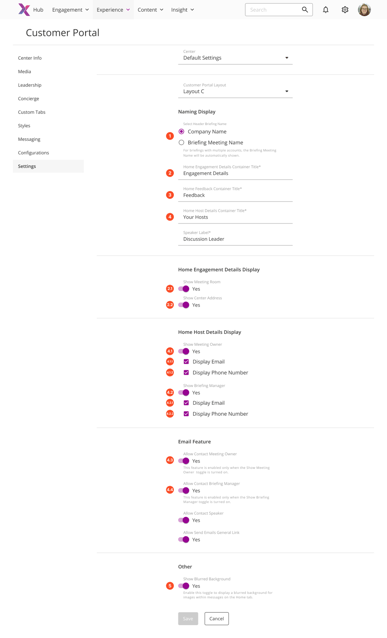
1. Naming Display
This section controls the key labels and heading text used on the Layout C home screen.
|
Setting |
Type |
Notes |
|---|---|---|
|
Select Header Briefing Name |
Radio button group |
Required |
|
Company Name |
Radio option |
Mutually exclusive with Briefing Meeting Name |
|
Briefing Meeting Name |
Radio option |
Mutually exclusive with Company Name |
|
Home Engagement Details Container Title |
Text field |
Required, up to 255 characters |
|
Home Feedback Container Title |
Text field |
Required, up to 255 characters |
|
Home Host Details Container Title |
Text field |
Required, up to 255 characters |
|
Speaker Label |
Text field |
Required, up to 255 characters |

Rendered View:
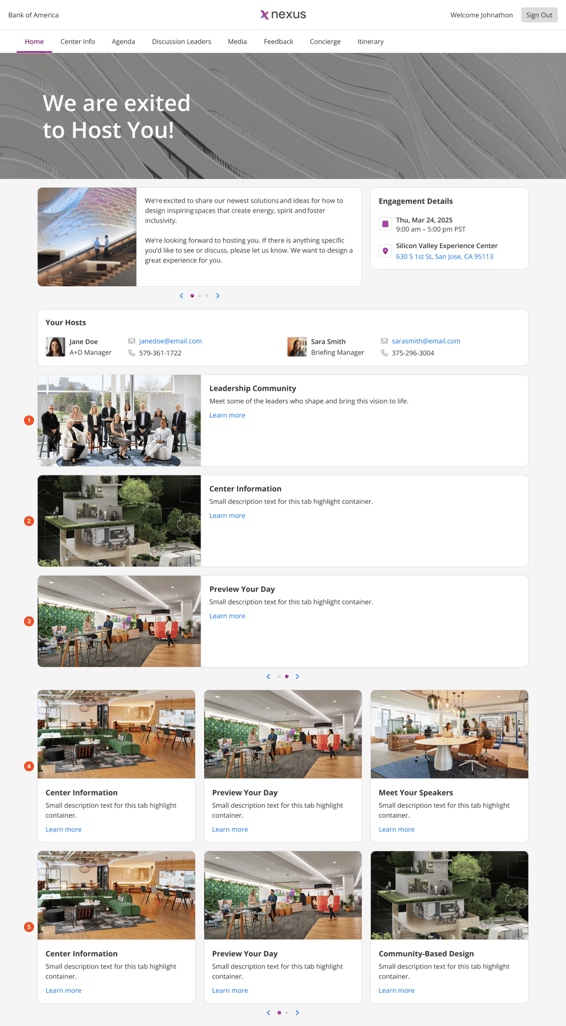

Special characters are supported in the text fields listed above.
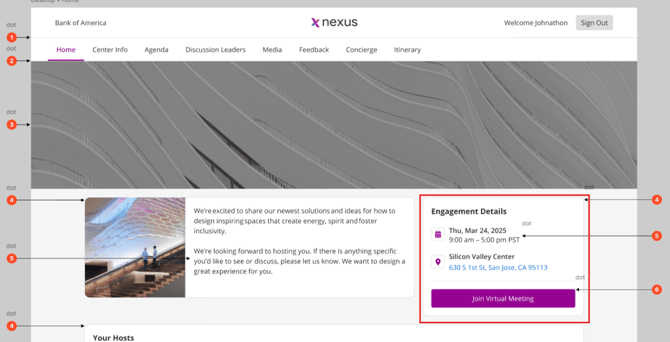
2. Home Engagement Details Display
This section controls whether additional engagement details appear on the home screen.
|
Setting |
Type |
|---|---|
|
Show Meeting Room |
Toggle |
|
Show Center Address |
Toggle |
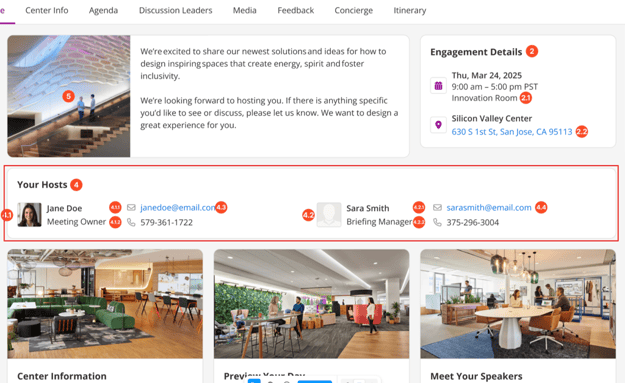
3. Home Host Details Display
This section controls whether host details are shown in the Your Hosts area.
|
Setting |
Available display options |
|---|---|
|
Show Meeting Owner |
Show, Display Email, Display Phone Number |
|
Show Briefing Manager |
Show, Display Email, Display Phone Number |
4. Email Feature
This section controls the contact actions available in Layout C.
|
Setting |
Notes |
|---|---|
|
Allow Contact Meeting Owner |
Available only when Meeting Owner display is turned on |
|
Allow Contact Briefing Manager |
Available only when Briefing Manager display is turned on |
|
Allow Contact Speaker |
Optional |
|
Allow Send Emails General Link |
Optional |
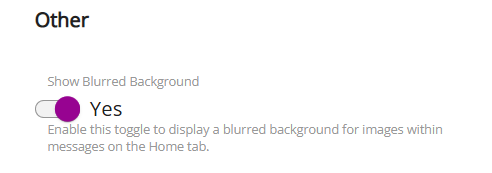
5. Other
This section includes additional display behavior for mobile viewing.
|
Setting |
Notes |
|---|---|
|
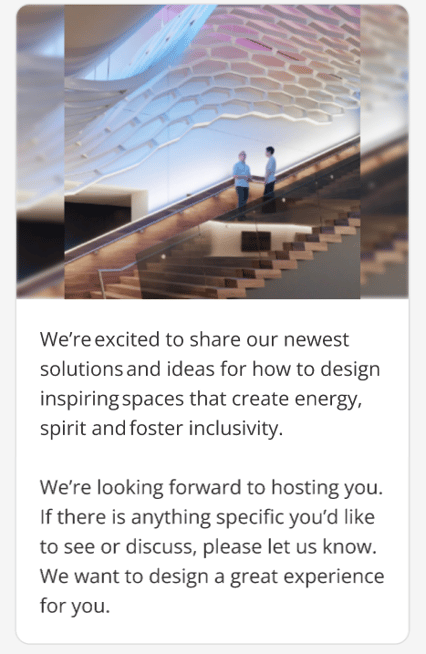
Show Blurred Background |
Enable this toggle to display a blurred background for images within messages on the Home tab. |
Styles
1. Header Styles
Controls the appearance of the top header section of the Customer Portal.
|
Field |
Description |
|---|---|
|
Header Color |
Sets the primary background color of the header area |
|
Header Border Color |
Defines a border line color below or around the header for visual separation |
|
Header Text Color |
Controls the color of text displayed in the header (e.g., titles, labels) |
|
Header Image |
Displays a background or banner image within the header |
|
Logo Image |
განსcribes the logo shown in the header, typically representing the organization |
|
Opacity (%) |
Adjusts transparency of the header background or overlay (0 = fully transparent, 100 = fully solid) |
|
Sign Out Button Color |
Defines the background color of the Sign Out button |
|
Sign Out Button Text Color |
Controls the text color within the Sign Out button |
2. Main Navigation Styles
Defines the look and feel of the main navigation menu.
|
Field |
Description |
|---|---|
|
Background Top Gradient |
Sets the top color of the navigation background gradient |
|
Background Bottom Gradient |
Sets the bottom color of the navigation gradient |
|
Icon Color |
Controls the color of navigation icons |
|
Text Color |
Defines the default color of navigation text |
|
Active Tab Top Gradient |
Sets the top gradient color for the selected (active) tab |
|
Active Tab Bottom Gradient |
Sets the bottom gradient color for the active tab |
|
Active Tab Text Color |
Controls the text color of the currently selected tab |
|
Opacity (%) |
Adjusts transparency of the navigation bar |
3. Home Page Hero Content (Layout C Only)
Controls the greeting or hero section displayed on the homepage.
|
Field |
Description |
|---|---|
|
Greeting Image |
Displays a featured image in the hero section (e.g., welcome banner) |
|
Greeting Background Color |
Sets the background color behind the greeting content |
|
Greeting Overlay Opacity (%) |
Controls the overlay transparency applied on top of the hero image for readability |
4. Pod Styles
Controls the appearance of content pods (cards/sections) used across the portal.
|
Field |
Description |
|---|---|
|
Pod Header Color |
Sets the background color of pod headers |
|
Pod Text Color |
Defines the text color within pods |
|
Primary Pod Top Gradient |
Top gradient color for primary pods |
|
Primary Pod Bottom Gradient |
Bottom gradient color for primary pods |
|
Primary Pod Opacity (%) |
Controls transparency of primary pods |
|
Secondary Pod Top Gradient |
Top gradient color for secondary pods |
|
Secondary Pod Bottom Gradient |
Bottom gradient color for secondary pods |
|
Secondary Pod Opacity (%) |
Controls transparency of secondary pods |
|
Pod Corner Radius |
Defines how rounded the corners of pods appear (in pixels) |
|
Itinerary Pod Stroke Color |
Sets the border color around itinerary pods |
|
Itinerary Pod Gradient Color |
Defines gradient styling specific to itinerary pods |
5. General Styles
Defines global branding and visual consistency across the portal.
|
Field |
Description |
|---|---|
|
Font Type |
Selects the font family used throughout the portal |
|
Primary Brand Color |
Main brand color used for highlights and key UI elements |
|
Secondary Brand Color |
Supporting brand color used for accents |
|
Hyperlink Color |
Defines the color of clickable links |
|
Subheader Text Color |
Sets color for subheadings across pages |
|
Subheader Font Weight |
Controls thickness (boldness) of subheader text |
|
Background Color |
Sets the overall background color of the portal |
|
Button Color |
Defines the default background color for buttons |
|
Button Corner Radius |
Controls how rounded button corners appear |
|
Rating Pod Color |
Sets the color used in rating or feedback pods |
|
Sidebar Background Color |
Defines background color of side navigation panels |
|
Browser Background Color |
Controls outer/background color surrounding the portal view |
|
Logo Screen Image |
Displays an image on loading or logo screens |
How It Works
-
Navigate to Styles Tab
-
Select a Center configured with Layout C
-
Configure fields across the five sections
-
Resolve any validation errors
-
Click Save
-
View updates immediately in the Customer Portal
Important Considerations & Limitations
-
Layout C fields are only visible when Layout C is selected
-
Mandatory fields must be completed before saving
-
Color inputs must be valid HEX values
-
Image uploads must meet format and size requirements
-
Numeric fields must be within allowed ranges
-
Unsaved changes trigger a confirmation popup when navigating away
-
Changes are applied instantly after saving
Quick Links updates
|
Update |
Description |
|---|---|
|
Quick Link Library |
A global library for quick links that can be used across all layouts |
|
Layout indicator |
The selected layout appears under the Center dropdown |
|
Add action label |
The legacy New Quick Link action is replaced by Add Quick Link |
|
Layout C quick link fields |
Quick Link Details now includes a Layout C section with Title Text, Description Text, and Link Image |
|
Layout B icon clarification |
Link Icon is identified as applying only to Layout B |
|
Removed option |
The Show in Briefing Instance checkbox group is removed from the Quick Link Details form |
|
Layout C actions |
Layout C provides Add Group and Add Quick Link actions |
User Roles / Permissions / Prerequisites
User roles
|
Role |
Access |
|---|---|
|
Admin |
Can configure Layout C settings, styling, and quick links |
|
Customer Portal User |
Can view and use Layout C in the portal |
Prerequisites
-
Layout C must be selected for the relevant center.
-
Customer Portal tabs must be enabled in configuration for them to appear.
-
Required Layout C fields must be completed before settings can be saved.
-
Responsive behavior is supported for desktop, tablet, and mobile access.
How It Works / User Flow – Step-by-Step
1. Enable and configure Layout C
-
Go to Experience Hub → Customer Portal → Settings.
-
Select Layout C from the layout dropdown.
-
Complete the available settings sections:
-
Naming Display
-
Home Engagement Details Display
-
Home Host Details Display
-
Email Feature
-
Other
-
-
Save the configuration.
If required fields are left blank, the affected field labels appear in red and the Save button remains disabled until the issue is resolved.
2. Configure tab visibility and order
-
Open the existing Customer Portal tab configuration area.
-
Enable the tabs that should appear in Layout C.
-
Arrange them in the required order.
-
Save the configuration.
-
Reload Layout C to view the updated tab layout.
Only enabled tabs appear in Layout C, and they appear in the configured order.
3. Configure navigation styling
-
Open Settings → Branding / Header Styles.
-
Select the relevant center or site configuration.
-
Update the required Layout C navigation style values.
-
Save the configuration.
-
Refresh the portal if needed to confirm the updated appearance.
4. Configure Quick Links for Layout C
-
Open Customer Portal → Configurations → Quick Links.
-
Select the required center.
-
Confirm the selected layout shown under the Center dropdown.
-
Use Add Group if you want to create a quick link group for Layout C.
-
Use Add Quick Link to add a quick link.
-
In Quick Link Details, complete the Layout C fields as needed to create a new quick link:
-
Title Text
-
Description Text
-
Link Image
-
-
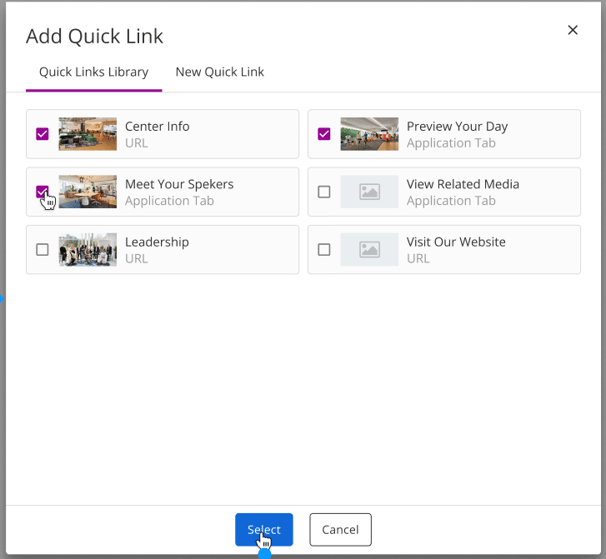
As an alternate workflow, the user can choose from the list available in quick links Templates to add an existing link.
-
Save your changes.
Where relevant:
-
Link Icon applies only to Layout B.
-
The Show in Briefing Instance option is no longer part of the Quick Link Details form.
5. Configure custom tab to Application tab type Quick link
-
Open Customer Portal > Configurations > Add Quick Link/Group > Select custom tab
-
Briefing Details > Experiences > Add Quick Link/Group > Select custom tab
-
Custom tabs are also applicable for layouts A and B
6. End-user experience in Layout C
-
The portal opens in the new Layout C view.
-
The Home tab is selected by default.
-
Users can move between enabled tabs using the horizontal tab bar.
-
If too many tabs are visible, additional tabs appear under More.
-
The tab content loads within the same page instead of opening a separate page.

7. Responsive behavior
On smaller screens, Layout C adjusts the tab presentation for tablet and mobile viewing. Depending on screen size, tabs may appear in a scrollable bar or similar compact format.
Important Considerations & Limitations
-
Layout C-specific settings appear only when Layout C is selected.
-
Switching from Layout C back to another layout hides Layout C fields.
-
Previously entered Layout C values are preserved even if the user switches layouts before saving elsewhere.
-
Required Layout C fields must be completed before Save is allowed.
-
Existing Save, Cancel, and unsaved changes confirmation behaviors are reused.
-
When users navigate away with unsaved changes, the existing confirmation popup appears.
-
Tab changes made in configuration are reflected in Layout C after the page is reloaded.
-
Long tab names are truncated using the existing tab-name logic.
-
Disabled tabs do not appear and do not leave empty space.
-
When the number of visible tabs exceeds the available width, overflow tabs move into a More menu.
-
If all tabs are disabled, Layout C displays the updated header with the Nexus logo and hamburger menu, instead of the old vertical-layout behavior.
-
Layout C styling is center/site specific where supported by configuration.
-
Navigation styling continues to work across desktop, tablet, and mobile views.
-
Quick Links changes in this release are limited to the configuration UI.
-
The Quick Links scope does not include backend changes, payload changes, or portal rendering changes.
-
Link Icon is relevant only for Layout B in the Quick Link Details form.
-
The Show in Briefing Instance option is no longer available in the Quick Link Details form.
FAQs
What changes when I select Layout C?
Layout C introduces a new portal view with horizontal tabs, Layout C-specific home-page settings, navigation style controls, and updated Quick Links configuration support.
Do I need to reconfigure all tabs for Layout C?
Layout C continues to use the existing tab visibility and ordering logic. Only enabled tabs appear, and they appear in the configured order.
What happens if I switch away from Layout C after entering values?
The Layout C sections are hidden, but previously entered Layout C values are preserved.
Why can’t I save my Layout C settings?
One or more required fields may be blank. Required fields are highlighted, and Save remains disabled until they are completed.
Why don’t I see a contact option for Meeting Owner or Briefing Manager?
The related contact feature is available only when the corresponding host display option is turned on.
What happens if all tabs are disabled?
Layout C still loads, but instead of showing tabs, it displays the updated header with the Nexus logo.
What changed in Quick Links for Layout C?
Quick Links now shows the selected layout below the Center dropdown, uses Add Quick Link instead of New Quick Link, supports Layout C-specific quick link fields, and includes Add Group and Add Quick Link actions for Layout C.
Does Quick Links in this release change portal rendering?
No. The Quick Links work in this scope are limited to the configuration UI and do not include backend or portal rendering changes.
Do style changes apply immediately?
Saved style changes are intended to reflect immediately, although a refresh or cache refresh may be needed in some cases.
Does Layout C work on mobile devices?
Yes. Layout C supports responsive tablet and mobile views.
Support & Troubleshooting
If Layout C is not behaving as expected, check the following first:
-
Confirm that Layout C is selected in Customer Portal settings
-
Confirm that required fields in the Layout C settings are completed
-
Confirm that the required tabs are enabled in Customer Portal configuration
-
Confirm that any contact-related feature is supported by the corresponding host display setting
-
Confirm that the correct center or site configuration is being edited
-
Refresh the portal after configuration changes
-
Check whether all tabs were disabled, which can change what the user sees on first load
-
In Quick Links, confirm the correct layout is shown under the Center dropdown
-
In Quick Links, confirm you are using the correct layout-specific fields and actions
When contacting support, provide:
-
Center or site name
-
Selected layout
-
Screen where the issue occurred
-
Name of the setting, tab, or quick link affected
-
Screenshot of the issue
-
Whether the issue occurs on desktop, tablet, or mobile