
- Overview
- What's New
- Functional Summary
- Key Capabilities
- Customer Portal Media Update – Overview
- Configuration & Administration
- User Roles, Permissions & Prerequisites
- How It Works – Step-by-Step User Flows
- 1. Upload a PowerPoint File via Content – Media
- 2. Upload a PowerPoint File via Experience – Customer Portal – Media
- 3. Upload a PowerPoint File via Engagement – Experiences
- 4. View PPT Files in the Customer Portal – Media Tab
- 5. Add a URL-Based Link as Media
- 6. Upload a Custom Thumbnail for Any Media or Link
- 7. Filter Media by Content Type
- 8. Customer Portal Media Tab – Layout C
- Important Considerations & Limitations
- Frequently Asked Questions
- Support & Troubleshooting
Overview
This release delivers a comprehensive update to the Customer Portal media experience. Users can now upload and manage PowerPoint presentations (.ppt and .pptx) alongside existing media types, add URL-based link media to their Customer Portal content, apply custom thumbnails to any media or link, and enjoy an improved media tab layout with richer visual previews across all Customer Portal layouts.
These enhancements give teams greater flexibility in how they present content to their customers, enabling seamless incorporation of presentations, external resources, and visually branded media assets into Customer Portal experiences and engagements.
What's New
-
PowerPoint file support (.ppt and .pptx) for upload, display, filtering, and use across Content, Experience, and Engagement modules
-
URL-based (link) media: ability to add, save, and display external links as media items in the Customer Portal
-
Custom thumbnail upload for any media type or link, displayed across all platform views
-
Automatic standard thumbnail generation for all media types (images, videos, PDFs, PPTX files)
-
Updated 'Add' button on the Content – Media page, replacing 'Add Media' with a dropdown offering Media and Link options
-
New 'PPT' and 'Link' options in the Content Type filter dropdown across Experience and Engagement modules
-
Refreshed Customer Portal media tab design (Layout C) with tile view, email cart functionality, and navigation bar
-
Link Details page: view, preview, edit, and delete URL-based media items
Functional Summary
Users can now include a broader range of content types in the Customer Portal. PowerPoint files behave similarly to PDFs – they are restricted to the Customer Portal product and display with a standard PPT icon. When previewed, PPTX files show the first slide as their thumbnail, while legacy .ppt files display a default icon. PPT files cannot be previewed in-browser; users may download or email them instead.
URL-based links can now be added as media items through a new 'Add Link' workflow available in Content – Media, Experience – Customer Portal – Media, and Engagement – Experiences. Links appear alongside uploaded files in the media table and can be previewed, emailed, and managed similarly to other media, with the exception that they cannot be downloaded.
Custom thumbnails can be uploaded for any media file or link. These thumbnails are displayed wherever the media appears across the platform: media tables, Engagement experiences, and upload modals. Where no custom thumbnail is provided, a standard thumbnail is automatically generated based on the media type.
Key Capabilities
|
Capability |
Description |
|
PowerPoint Upload (.ppt / .pptx) |
Upload PowerPoint files as Customer Portal media assets from Content, Experience, and Engagement modules |
|
PPT Content Type Filter |
Filter the media list by 'PPT' type to locate PowerPoint files quickly |
|
PPT Thumbnail Display |
PPTX files display the first slide as a thumbnail; legacy .ppt files display a default PPT icon |
|
PPT Download & Email |
Users can download or email PPT files from the Customer Portal; in-browser preview is not supported |
|
URL-Based Link Media |
Add external URLs as media items, viewable and emailable in the Customer Portal |
|
Link Content Type Filter |
Filter the media list by 'Link' type to find URL-based media items |
|
Custom Thumbnail Upload |
Upload a custom image thumbnail for any media type or link to be used as its visual preview across the platform |
|
Automatic Standard Thumbnails |
System-generated thumbnails for all media: image (the image itself), video (first frame), PDF (first page), PPTX (first slide) |
|
Updated Add Button |
The 'Add Media' button in Content – Media is replaced with an 'Add' dropdown offering 'Media' and 'Link' options |
|
Refreshed Media Tab (Layout C) |
Tile view, Download and Email buttons per media item, Email cart sidebar, and visible navigation bar in Layout C |
|
Link Details Page |
View full details, preview, edit, and delete URL-based media from a dedicated Link Details page |
Customer Portal Media Update – Overview
The Customer Portal media experience has been expanded to support PowerPoint files, external URL-based links, and richer visual previews through custom and auto-generated thumbnails. These updates apply across the three primary access points: Content – Media, Experience – Customer Portal – Media, and Engagement – Experiences.
Key behaviors to be aware of:
-
PPT files are restricted to the Customer Portal product. The product dropdown is automatically set to 'Customer Portal' and cannot be changed for this media type, consistent with the existing behavior for PDF files.
-
URL-based links are also restricted to the Customer Portal product context.
-
Custom thumbnails, once uploaded and saved, appear universally: in media tables, upload modals, and Engagement experience views.
-
Where no custom thumbnail is provided, standard thumbnails are generated automatically based on media type. For .ppt (legacy binary format) files, the default PPT icon is always used as no dynamic thumbnail can be generated.
-
The 'Add' dropdown in Content – Media allows users to choose between uploading a media file or adding a URL link. The 'Link' option in the dropdown opens the Link Details form; selecting 'Media' opens the standard media upload modal.
Configuration & Administration
No additional configuration or system setup is required to enable any of the features included in this release. All capabilities are available immediately upon deployment.
The following system behaviors apply automatically and require no manual configuration:
|
Area |
Behavior |
|
Product Assignment – PPT |
Automatically set to 'Customer Portal'; not configurable for other products |
|
Product Assignment – Links |
Automatically restricted to 'Customer Portal' context |
|
Supported File Types |
JPG, PNG, MP4, PDF, PPT, PPTX |
|
Content Type Filter Options |
PPT and Link appear as new filter options in the Content Type dropdown |
|
Thumbnail Generation |
Automatically triggered after file upload; thumbnails stored and served from the platform |
|
Thumbnail Backfill |
Thumbnails have been generated for all pre-existing media files across all tenants |
User Roles, Permissions & Prerequisites
|
Requirement |
Details |
|
Access to Content – Media |
Required to upload PPT files or add links via the Content module |
|
Access to Experience – Customer Portal – Media |
Required to upload PPT files or add links via the Experience module |
|
Access to Engagement – Experiences |
Required to upload PPT files or add links within a visit experience |
|
At least one visit (for Engagement usage) |
At least one visit must exist before accessing the Experiences tab for Engagement-level media uploads |
|
PPT media uploaded (for PPT filter) |
At least one PPT file must be uploaded before the PPT filter returns results |
How It Works – Step-by-Step User Flows
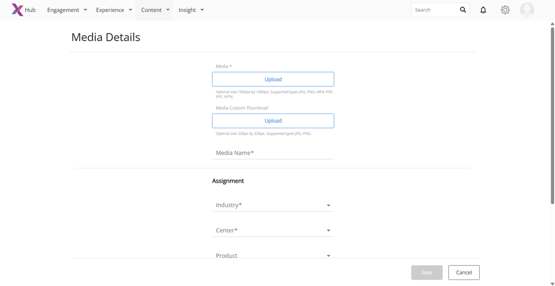
1. Upload a PowerPoint File via Content – Media
-
Navigate to Content → Media.
-
Click the 'Add' button and select 'Media' from the dropdown.
-
In the Upload tab, note the supported formats listed below the Upload button: JPG, PNG, MP4, PDF, PPT, PPTX. Recommended upload size is 1920px by 1080px.
-
Click 'Upload' and select a .ppt or .pptx file.
-
The file is accepted. The Product field is automatically set to 'Customer Portal' and cannot be changed.
2. Upload a PowerPoint File via Experience – Customer Portal – Media
-
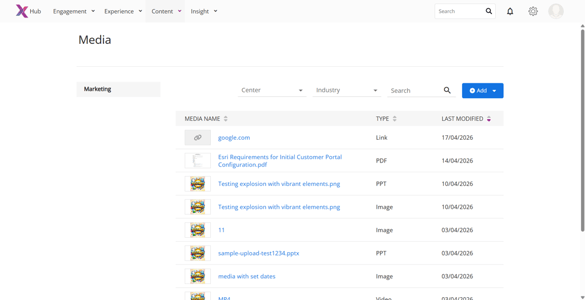
Navigate to Experience → Customer Portal → Media.
-
Click 'Add Media'. The Customer Portal Content modal opens.
-
Navigate to the 'Upload' tab. Supported file types including PPT and PPTX are displayed below the Upload button.
-
Click 'Upload' and select a .ppt or .pptx file.
-
The file is accepted. 'Customer Portal' is auto-selected in the product dropdown. The file appears in the media table with PPT type and the appropriate thumbnail or icon.
3. Upload a PowerPoint File via Engagement – Experiences
-
Open a visit and navigate to the Experiences tab.
-
In the Customer Portal section, click 'Upload'.
-
Supported file types (including PPT, PPTX) are shown below the Upload button.
-
Select a .ppt or .pptx file. The file is uploaded, 'Customer Portal' is auto-selected, and the item appears in the media table as PPT type.
Note: The 'Add Link' button is not available in the Virtual Warmer upload section – only in the Customer Portal section.
4. View PPT Files in the Customer Portal – Media Tab
-
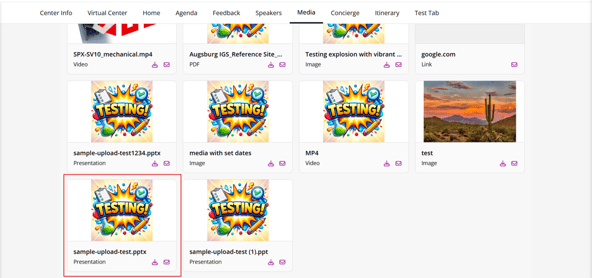
Navigate to the Customer Portal – Media tab.
-
PPT files appear alongside other media items.
-
PPTX files display the first slide as their thumbnail. Legacy .ppt files display the default PPT icon.
-
Users can download or email PPT files. In-browser preview is not supported. A message is displayed: 'The file cannot be previewed, but you can download it or send via email for view'.
5. Add a URL-Based Link as Media
This flow applies to Content – Media, Experience – Customer Portal – Media, and Engagement – Experiences (Customer Portal section).
-
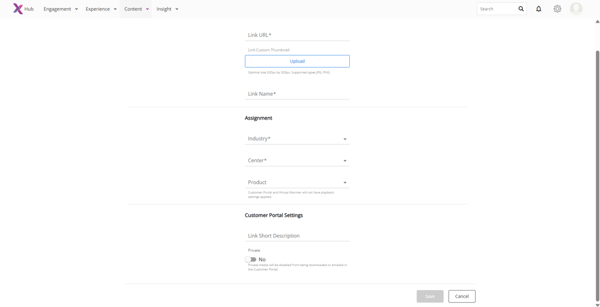
In Content – Media: click 'Add' and select 'Link' from the dropdown. In Experience or Engagement: click 'Add Media' or 'Upload', then navigate to the 'Add Content' tab and click 'Add Link'.
-
The Link Details form opens. Complete the following fields:
|
Field |
Description |
Notes |
|
Link URL |
The external URL for the media item |
Required. Must begin with http:// or https://. Max 255 characters. No leading whitespace. |
|
Link Name |
Display name for the media item |
Required. Max 100 characters. Trailing whitespace is automatically removed on save. |
|
Custom Thumbnail |
Optional image to display as the media thumbnail |
Upload via the Media Upload button. Click 'x' to remove. |
|
Industry / Center / Product |
Assignment settings |
Only 'Customer Portal' is available in the Product dropdown for link media. |
|
Privacy |
Mark as private if the link should not be emailed |
Private links cannot be emailed to attendees. |
-
Click 'Save'. The link is saved and appears in the media table.
-
The link can be previewed (opens in a new browser tab), emailed to attendees, edited, or deleted. Links cannot be downloaded.
6. Upload a Custom Thumbnail for Any Media or Link
Custom thumbnails can be added when creating new media or editing existing media and links, across Content, Experience, and Engagement modules.
-
When adding or editing any media item or link, a 'Media Upload' button is displayed under the 'Media Custom Thumbnail' field.
-
Click the button to select and upload a thumbnail image.
-
Once uploaded, an 'x' button is shown to remove the thumbnail if needed.
-
On save, the custom thumbnail is applied and displayed wherever the media appears across the platform: media tables, upload modals, and Engagement experience views.
7. Filter Media by Content Type
-
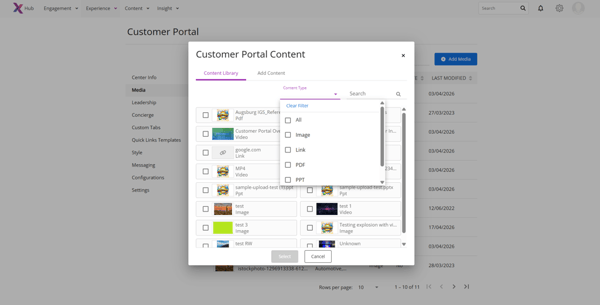
In the Content Type filter dropdown (available in Experience – Customer Portal – Media and Engagement – Experiences), select 'PPT' to display only PowerPoint media items.
-
Select 'Link' to display only URL-based link media items.
-
Filter options are listed in alphabetical order. 'PPT' appears below 'PDF'; 'Link' appears at the end of the list.
Note: At least one PPT or Link item must already be uploaded for the filter to return results.
8. Customer Portal Media Tab – Layout C
The Customer Portal media tab has been refreshed for Layout C users with a more visual, tile-based display.
-
Media items are displayed in tile view with the thumbnail, media name, and timestamp visible.
-
Download and Email buttons appear in the lower-right corner of each tile.
-
For private media, 'Private' is shown in place of the action buttons.
-
The Email button cycles through three states: not in cart (envelope icon), added to cart (checkmark icon), and sent (envelope with checkmark).
-
Clicking the envelope adds the media to the Email cart and displays a 'Added to Email Cart' toast notification.
-
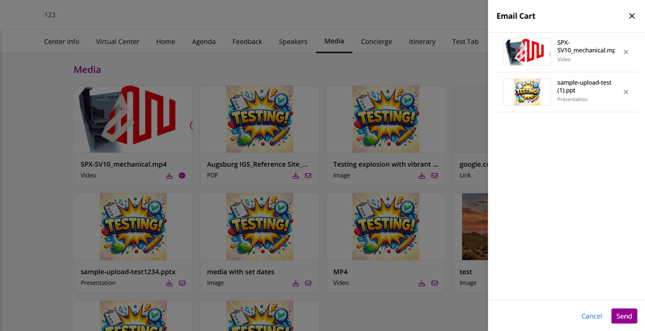
Clicking the 'Email' button opens a sidebar showing all items in the cart. Click 'Send' to email all cart items as links to attendees.
-
Items can be removed from the cart; the icon reverts to the envelope state.
-
A navigation bar is visible on Layout C, allowing users to navigate directly to the Media tab.
Important Considerations & Limitations
|
Area |
Detail |
|
PPT product restriction |
PPT files are always assigned to 'Customer Portal'. The product dropdown is locked and cannot be changed. |
|
PPT in-browser preview |
PowerPoint files cannot be previewed in the browser. Users will see the message: 'The file cannot be previewed, but you can download it or send via email for view.' |
|
.ppt vs .pptx thumbnails |
PPTX files show the first slide as a thumbnail. Legacy .ppt files always display the default PPT icon – no dynamic thumbnail is generated for the binary .ppt format. |
|
Link media – no download |
URL-based link items cannot be downloaded using the Download button. Preview (opens in a new tab) and Email are the available actions. |
|
Private media / links |
Private items cannot be emailed to attendees. Download may also be restricted depending on privacy settings. |
|
Link URL validation |
URLs must start with http:// or https://. Max 255 characters. Leading whitespace is not permitted. Trailing whitespace is automatically trimmed on save. |
|
Link Name validation |
Max 100 characters. Trailing whitespace is automatically trimmed on save. |
|
Google Drive link thumbnails |
Thumbnails are fetched automatically for publicly accessible Google Drive links. Private or organisation-restricted Google Drive files display the default link icon. |
|
OneDrive / SharePoint links |
Auto-generated thumbnails are not supported for OneDrive or SharePoint links. The default link icon is displayed. |
|
Add Link in Engagement |
The 'Add Link' button is only available in the Customer Portal section of Engagement – Experiences. It does not appear in Virtual Warmer upload areas. |
|
Unsaved changes on cancel |
If a user navigates away from the Link Details edit form without saving, a confirmation dialog is shown: 'Are you sure you want to leave this page without saving?' |
Frequently Asked Questions
Can I upload PowerPoint files to all products?
No. PPT files are restricted to Customer Portal only. The Product dropdown is automatically set and cannot be changed.
Which PowerPoint formats are supported?
Both .ppt and .pptx formats are supported for upload.
Can I preview PPT files inside the platform?
No. PPT files cannot be previewed in-browser. Users can download the file or send it via email. A message is shown to guide users when they attempt to preview.
What thumbnail is shown for PPT files?
For .pptx files, the first slide is used as the thumbnail. For legacy .ppt files, a default PPT icon is displayed.
How do I filter to see only PPT files?
Use the Content Type filter in the media modal and select 'PPT'. At least one PPT file must already be uploaded for this to return results.
Can I use PPT files in Engagement experiences?
Yes. PPT files can be uploaded and used within the Customer Portal section of visit Experiences in Engagement.
What is a URL-based link media item?
It is an external URL that is saved as a media item in the Customer Portal. It can be previewed (opens in a new tab), emailed to attendees, and edited – but it cannot be downloaded.
Can I add a custom thumbnail to a link?
Yes. When creating or editing a link, upload a custom thumbnail image using the 'Media Upload' button. This thumbnail is displayed wherever the link appears in the platform.
Are thumbnails generated for existing media?
Yes. Thumbnails have been automatically backfilled for all pre-existing media files across all tenants.
What happens if a PPT file has no embedded thumbnail?
The system uses the default PPT icon. This applies to legacy .ppt files and any PPTX file without an embedded thumbnail.
Will link thumbnails work for all link types?
Only publicly accessible Google Drive links have automatic thumbnail support. All other link types (OneDrive, SharePoint, private links) display the default link icon, unless a custom thumbnail is uploaded.
What happened to the 'Add Media' button?
In Content – Media, the 'Add Media' button has been replaced with an 'Add' dropdown that offers two options: 'Media' (for file uploads) and 'Link' (for URL-based content).
Support & Troubleshooting
If any of the features described in these notes are not working as expected, check the following before contacting support:
-
Confirm the file format is .ppt or .pptx for PowerPoint uploads.
-
Confirm the user has the appropriate module access (Content, Experience, or Engagement).
-
Confirm you are working within the Customer Portal product context for PPT and link media.
-
If the PPT or Link filter option returns no results, confirm that at least one PPT file or link has already been uploaded.
-
If a PPT thumbnail is not visible, allow a few moments for the system to generate it after upload.
-
If a link's thumbnail is not appearing, confirm the linked resource is publicly accessible. Private files will display the default icon.
-
If the 'Add Link' button is not visible in Engagement, confirm you are in the Customer Portal section of the Experiences tab – it does not appear in Virtual Warmer upload areas.
When contacting support, please provide the following information to help with diagnosis:
-
File name and type (for PPT issues)
-
URL and link name (for link media issues)
-
Module where the issue occurred (Content / Experience / Engagement)
-
Screenshot or screen recording of the issue
-
Steps taken before the issue occurred
-
Browser name and version