
Overview
This enhancement improves the configuration and display capabilities of the Agenda tab in the Customer Portal. It enables administrators to control the visibility of speakers and itinerary items while providing attendees with a more structured, unified, and interactive agenda experience.
- What’s New
- Functional Summary
- Key Capabilities
- Agenda Tab Enhancements – Overview
- Configuration & Administration
- Accessing Agenda Configuration
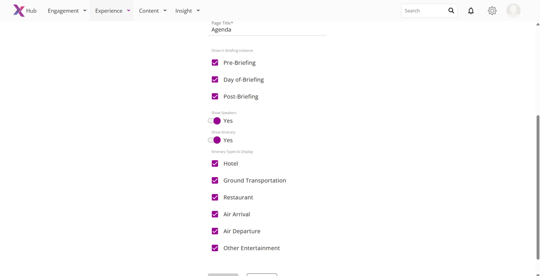
- Show Speakers Toggle
- Show Itinerary Toggle
- Itinerary Type Selection
- User Roles / Permissions / Prerequisites
- Prerequisites
- How It Works / User Flow – Step-by-Step
- 1. Configure Agenda Visibility
- 2. View Agenda Tab (Attendee Experience)
- 3. Interact with Itinerary Items
- Collapsed View (Default)
- Expanded View
- 4. Sorting & Grouping
- 5. Day Expand/Collapse Behavior
- Important Considerations & Limitations
Highlights
-
Added Show Speakers toggle for controlling speaker visibility
-
Added Show Itinerary toggle with itinerary type selection
-
Ability to select specific itinerary types
-
Unified view of agenda sessions and itinerary items
-
Expand/collapse functionality for items and day-level grouping
-
Improved sorting and grouping logic
Where to Configure
-
Engagement Settings / Experience Configuration
-
Agenda Tab Configuration
Functional Summary
Admins can now configure whether speaker details and itinerary items appear in the Agenda tab for a specific visit. Additionally, itinerary visibility can be further refined by selecting specific itinerary types.
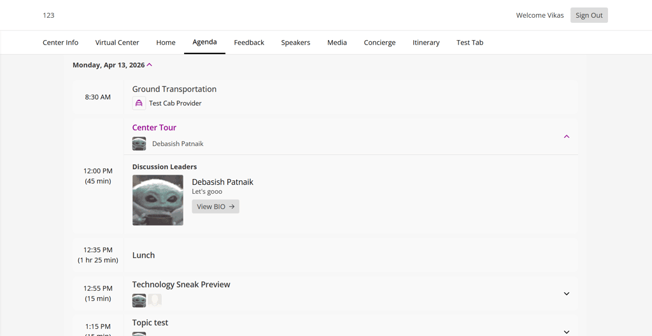
From the attendee perspective, the Agenda tab now displays both agenda and itinerary items in a unified timeline view, with expandable details and structured grouping by day.
Key Capabilities
-
Toggle-based control for speaker visibility
-
Toggle-based control for itinerary visibility
-
Granular selection of itinerary types
-
Unified display of agenda and itinerary items
-
Expandable itinerary item cards with detailed information
-
Intelligent sorting and grouping of items
-
Default expand/collapse behavior based on visit date
Agenda Tab Enhancements – Overview
The Agenda tab now combines agenda sessions and itinerary items into a single, chronological view. Admins configure what is shown, and attendees interact with a structured, expandable interface.
Enhancements focus on:
-
Configurability (Admin-controlled visibility)
-
Clarity (organized display of items)
-
Usability (expand/collapse interactions)
Configuration & Administration
Accessing Agenda Configuration
-
Navigate to Engagement Settings / Experience Configuration
-
Open the Agenda Tab configuration
-
Configure visibility using available toggles and options
Show Speakers Toggle
|
Field |
Description |
|---|---|
|
Show Speakers |
Controls whether speaker details are displayed in the Agenda tab |
Behavior:
-
Default state: ON
-
ON → Speaker details are visible
-
OFF → Speaker details are hidden
Show Itinerary Toggle
|
Field |
Description |
|---|---|
|
Show Itinerary |
Controls whether itinerary items appear in the Agenda tab |
Behavior:
-
Default state follows Customer Portal settings
-
ON → Itinerary items are displayed
-
OFF → Itinerary items are hidden
Itinerary Type Selection
When Show Itinerary = ON, the following checkboxes appear:
|
Itinerary Type |
Description |
|---|---|
|
Hotel |
Displays hotel-related itinerary entries |
|
Ground Transportation |
Displays transport-related items (e.g., transfers) |
|
Restaurant |
Displays dining-related entries |
|
Air Arrival |
Displays inbound flight details |
|
Air Departure |
Displays outbound flight details |
|
Other Entertainment |
Displays miscellaneous itinerary activities |
Behavior:
-
All checkboxes are selected automatically when toggle is ON
-
Users can deselect specific types to exclude them from display
User Roles / Permissions / Prerequisites
|
Role |
Access |
|---|---|
|
Admin / System Administrator |
Can configure Agenda tab settings |
|
Attendee |
Can view Agenda tab content based on configuration |
Prerequisites
-
Visit must contain agenda and/or itinerary items
-
BE (BriefingEdge) synchronization is required for itinerary functionality
How It Works / User Flow – Step-by-Step
1. Configure Agenda Visibility
-
Open Agenda configuration
-
Enable/disable:
-
Show Speakers
-
Show Itinerary
-
-
If enabled, select required itinerary types
-
Save configuration
2. View Agenda Tab (Attendee Experience)
-
Navigate to Customer Portal
-
Open the Agenda tab
-
View items grouped by visit day
-
See:
-
Agenda sessions
-
Itinerary items (if enabled)
-
3. Interact with Itinerary Items
Collapsed View (Default)
Each itinerary item displays:
|
Element |
Description |
|---|---|
|
Time |
Start time and duration |
|
Title |
Itinerary type (e.g., Air Arrival) |
|
Subtitle |
Key detail (e.g., location) |
|
Icon |
Represents itinerary type |
|
Chevron |
Indicates expandable row |
Expanded View
When expanded, additional details are shown:
-
Full itinerary information (same as Itinerary tab)
-
Example fields:
-
Arrival/Departure details
-
Flight number
-
Provider details (address, phone)
-
4. Sorting & Grouping
-
Items are sorted by start time (ascending)
-
Items with the same time are sorted alphabetically
-
Days are displayed even if only itinerary items exist
5. Day Expand/Collapse Behavior
-
Each day can be expanded or collapsed
-
Default behavior:
-
Current visit day → Expanded
-
Past/Future days → Collapsed
-
Important Considerations & Limitations
-
“Show Speakers” is independent of “Show Itinerary”
-
If a briefing instance is not selected, its speakers will not display regardless of toggle state
-
Itinerary functionality requires BE synchronization:
-
If not available, toggle is disabled with a message
-
-
If itinerary toggle is OFF:
-
No itinerary items are shown
-
-
If multiple items share the same time:
-
Alphabetical sorting is applied
-
-
Expand/collapse applies to both agenda and itinerary items
FAQs
Can I show itinerary items but hide speakers?
Yes. Both toggles are independent and can be configured separately.
What happens if no itinerary types are selected?
No itinerary items will be displayed.
Why is the Show Itinerary toggle disabled?
This occurs when BE synchronization is not enabled for the tenant.
Do itinerary items behave the same as in the Itinerary tab?
Yes. Expanded details match the Itinerary tab behavior.
Which day is expanded by default?
Only the current visit day is expanded; others remain collapsed.